
Contents of this article
A website running WordPress, a web shop or another CMS stores its content in a database. You create one yourself in DirectAdmin. Afterwards you have a database with its own user and password, which you enter when installing your website.
The screenshots show a demo domain and demo account; your names start with your own username.
Creating a database
-
Open Databases
Open DirectAdmin from the control panel (see Log in to DirectAdmin) and choose Account Manager > Databases in the menu.
-
Choose a name
Under Create Database, enter a short name in Database Name (1), for example
website. DirectAdmin adds the part in front, your username and an underscore, by itself. A user with the same name and a strong password is created automatically.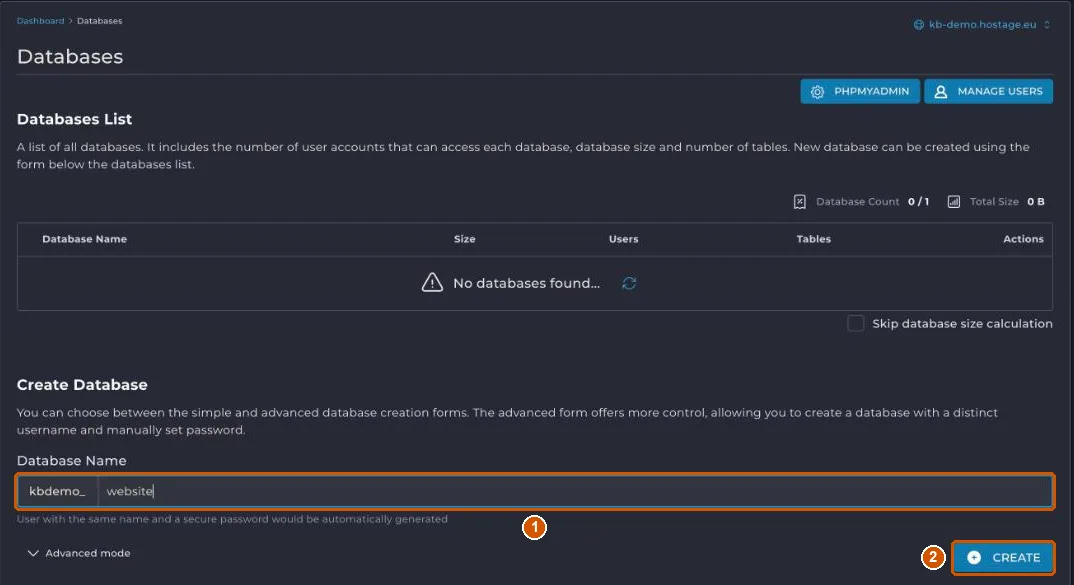
-
Click Create
Click CREATE (2).
-
Store the details right away
DirectAdmin shows Database created with the new database's details (3): Hostname, Database, Username and Password. Copy them straight into a password manager or into your website's settings.
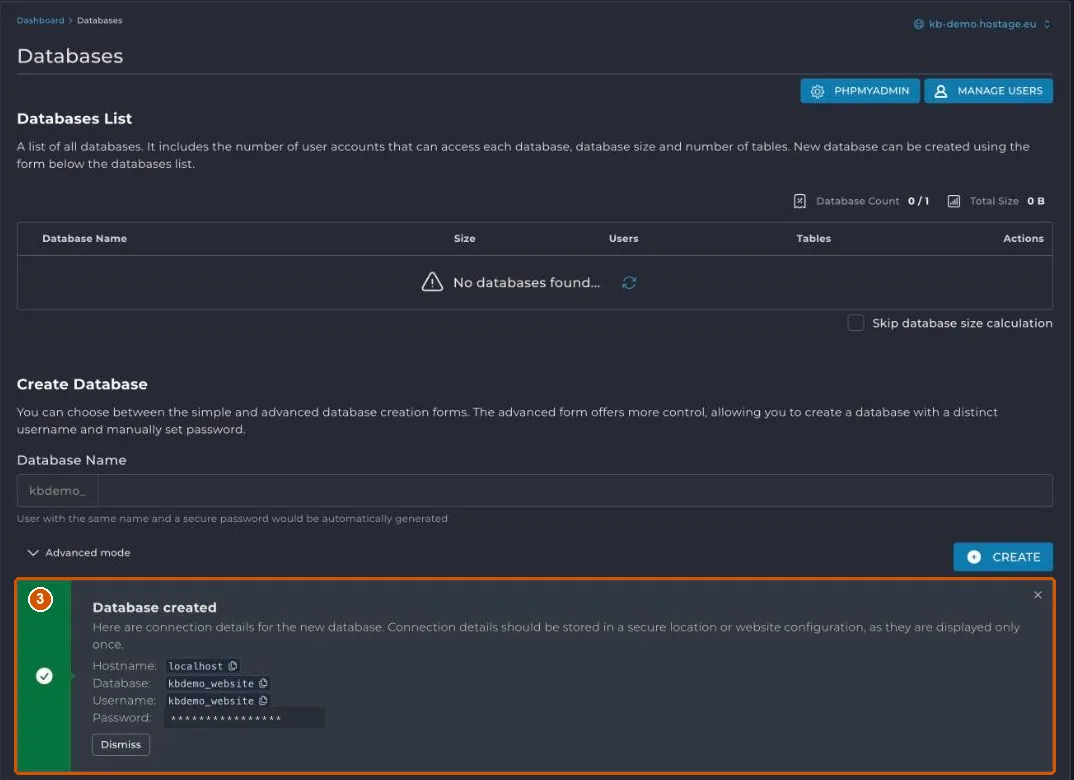
Hostname says localhost: your website runs on the same server as the database. Enter these four details when installing WordPress or another CMS.
Viewing the database in phpMyAdmin
After creation, the database appears in the list, with buttons to manage or delete it. PHPMYADMIN (4) at the top opens phpMyAdmin, where you can browse tables, import data or make an export.
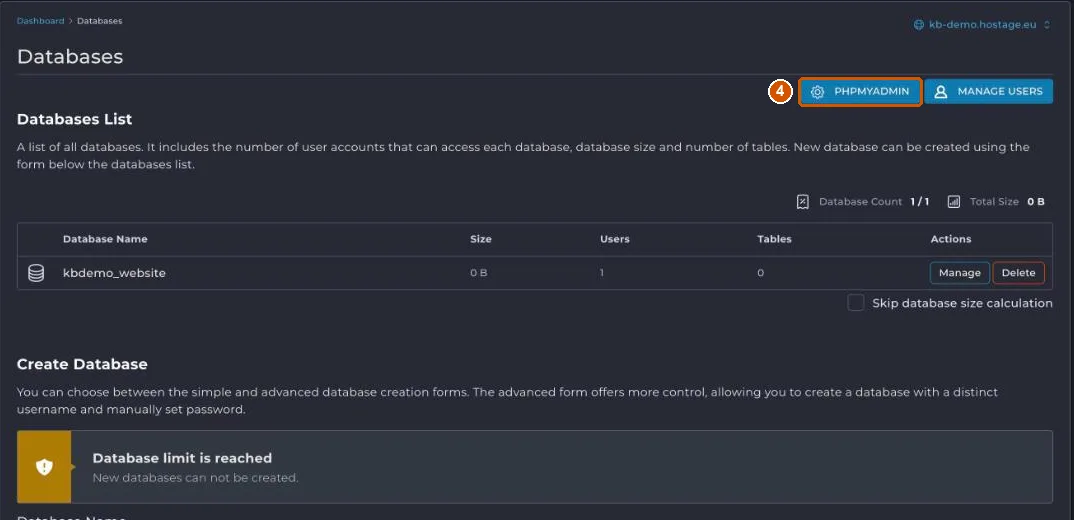
Database limit is reached
Your plan determines how many databases you can create; the control panel shows this on the Webhosting page under Pakket (plan). Once you reach the maximum, DirectAdmin says Database limit is reached and you can't create a new database. Use the existing database, or contact us about a larger plan.
If it doesn't work
If you've lost a database password or get an error when creating one, email support@hostage.nl with your domain, the database name and the exact error message. See also Make and restore a backup before making big changes to a database.
Was this article helpful?
Thank you for your feedback.
Thank you. What were you missing? Let us know at support@hostage.nl and we will add it to the article.
Related articles
- Check the SSL certificate for your website The SSL certificate is requested and renewed automatically; here's how to check it's in order.
- Change PHP settings in DirectAdmin Change a PHP setting for your website with an override in DirectAdmin.
- Log in to DirectAdmin from the control panel Open DirectAdmin with one click from the control panel, and what you see on its dashboard.
- Upload files with File Manager in DirectAdmin Put your website files in your domain's public_html folder, with File Manager or FTP.
Still stuck?
Send us a message. We will help you, usually within one working day.