
Contents of this article
With an SSL certificate your website works over https:// and visitors don't get a browser warning. With your web hosting you don't need to request or pay for one: the server requests a free certificate from Let's Encrypt and renews it by itself. The certificate covers your domain and its www variant, for example voorbeeld.nl and www.voorbeeld.nl.
There's one condition: both names must point to the web server. Until they do, the certificate can't be issued. The screenshots show a demo domain; the control panel is in Dutch, so its labels are given in Dutch where needed.
Checking that your domain points to your web hosting
-
Look in the control panel
Go to your domain's Webhosting page via Mijn diensten (My services). Under Wijst uw domein naar de webhosting? (Does your domain point to the web hosting?) (1) it shows for both names whether they're in order (in orde).

-
Fix the DNS if needed
If either name shows a warning:
- If you see the Zet de DNS goed (fix the DNS) button, click it. We set the records for you. It can take up to an hour before everyone sees the change.
- If you see an explanation with an A record (and sometimes an AAAA record) instead, add those records where your DNS is hosted. Use the address the control panel shows.
As soon as both names are in order, the certificate is requested automatically. You don't need to do anything else.
Viewing the certificate in DirectAdmin
-
Open SSL/TLS Certificates
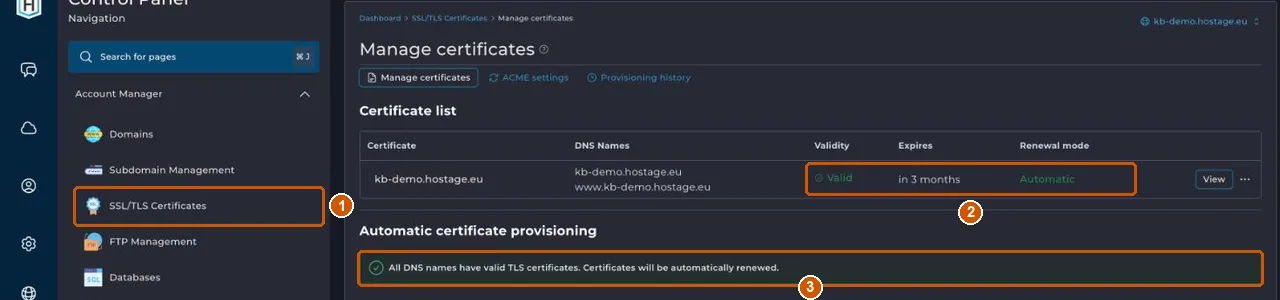
Open DirectAdmin from the control panel (see Log in to DirectAdmin) and choose Account Manager > SSL/TLS Certificates (1).
-
Check the status
The Certificate list shows for each certificate which names it covers (DNS Names), whether it's valid (Validity: Valid), when it expires (Expires) and that it renews automatically (Renewal mode: Automatic) (2).
-
Read the message under Automatic certificate provisioning
If it says All DNS names have valid TLS certificates. Certificates will be automatically renewed. (3), everything is in order.
If it doesn't work
If a name doesn't point to the server yet, that's almost always the cause. If you've set CAA records for your domain, they must allow Let's Encrypt; see TLSA and CAA records explained.
If the control panel says both names are in order and the certificate is still missing or invalid, email support@hostage.nl with your domain and the exact message from DirectAdmin.
Was this article helpful?
Thank you for your feedback.
Thank you. What were you missing? Let us know at support@hostage.nl and we will add it to the article.
Related articles
- Change PHP settings in DirectAdmin Change a PHP setting for your website with an override in DirectAdmin.
- Log in to DirectAdmin from the control panel Open DirectAdmin with one click from the control panel, and what you see on its dashboard.
- Upload files with File Manager in DirectAdmin Put your website files in your domain's public_html folder, with File Manager or FTP.
- Create a database in DirectAdmin Create a database for your website and safely store the login details you only see once.
Still stuck?
Send us a message. We will help you, usually within one working day.