
Contents of this article
To put a website online or replace a file on your site, you place the files in the right folder of your web hosting. You can do that in the browser with File Manager in DirectAdmin, or with an FTP program. Afterwards your files are in the folder that visitors to your domain see.
The screenshots show a demo domain; in the text we use voorbeeld.nl.
Where your website lives
Each domain in your account has its own folder. The files visitors see are in:
domains/voorbeeld.nl/public_htmlSo put your files in public_html of the right domain, not in the folder above it. Your site's home page is usually called index.html or index.php.
Uploading with File Manager
-
Open File Manager
Open DirectAdmin from the control panel (see Log in to DirectAdmin). In the menu, choose System Info & Files > File Manager; the icon bar at the top left also has a File Manager link. Alternatively, type
File Managerin the Search for pages field. -
Go to your domain's folder
On the left, click domains and then your domain (1). In the list on the right, open the
public_htmlfolder.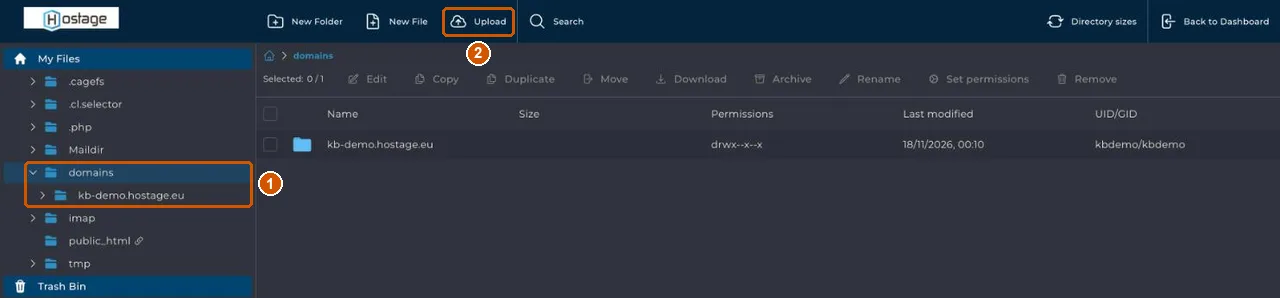
-
Upload your files
Click Upload (2) at the top and choose the files on your computer. They go into the folder you're currently in, so check the path at the top before uploading.
New Folder and New File create a folder or an empty file. When you tick a file, you can edit it (Edit), download it (Download), rename it (Rename) or delete it (Remove), among other things. Back to Dashboard takes you back to DirectAdmin.
Prefer an FTP program
For many or large files, an FTP program such as FileZilla is more convenient. You use your web hosting's main account for this; you don't need extra FTP accounts.

- Server and username: shown in the control panel on the Webhosting page under Verbinden (Connect).
- Password: the same as for the hosting panel. Lost it? Click Wachtwoord resetten (reset password) on that page.
- Folder: you start in your home folder. Go to
domains/voorbeeld.nl/public_html.
Choose SFTP in your FTP program if you can; your password and files then travel encrypted.
If it doesn't work
If you still see the old page after uploading, reload your browser without cache (Ctrl+F5, or Cmd+Shift+R on a Mac) and check that the files really are in public_html of the right domain. If it still doesn't work, email support@hostage.nl with your domain and the exact error message.
Was this article helpful?
Thank you for your feedback.
Thank you. What were you missing? Let us know at support@hostage.nl and we will add it to the article.
Related articles
- Check the SSL certificate for your website The SSL certificate is requested and renewed automatically; here's how to check it's in order.
- Change PHP settings in DirectAdmin Change a PHP setting for your website with an override in DirectAdmin.
- Log in to DirectAdmin from the control panel Open DirectAdmin with one click from the control panel, and what you see on its dashboard.
- Create a database in DirectAdmin Create a database for your website and safely store the login details you only see once.
Still stuck?
Send us a message. We will help you, usually within one working day.