
Contents of this article
If you're about to make big changes to your website, such as a WordPress update or a new theme, make a backup yourself first. If something goes wrong, you restore it. This article shows where to find that in DirectAdmin. The screenshots show a demo domain.
Making a backup
-
Open Backup and Restore
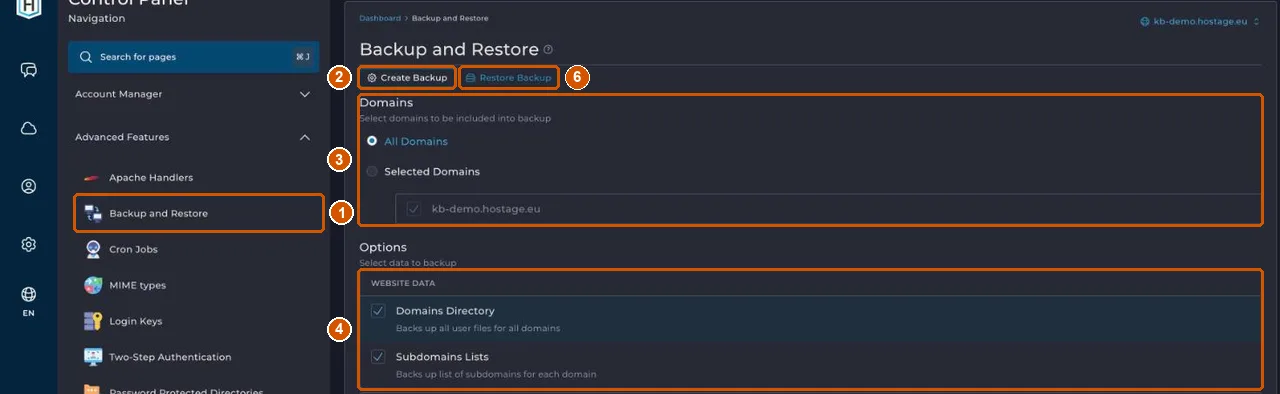
Open DirectAdmin from the control panel (see Log in to DirectAdmin) and choose Advanced Features > Backup and Restore (1).
-
Choose Create Backup
Make sure the Create Backup tab (2) is open.
-
Choose the domains
Under Domains (3), choose All Domains, or Selected Domains if you only want to include one domain.
-
Choose what to include
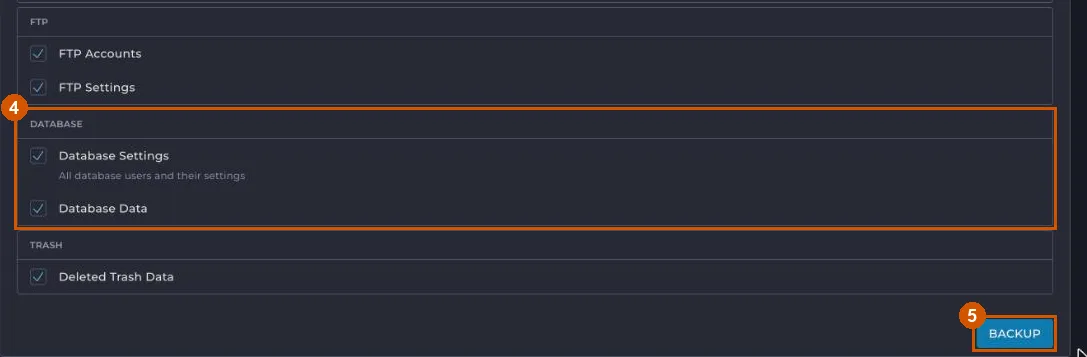
Under Options, keep Domains Directory ticked under WEBSITE DATA (4): that's all your website files. If your website uses a database, also keep Database Settings (the database users and their settings) and Database Data ticked under DATABASE further down (4, lower picture). The list also includes FTP and TRASH, among others.
-
Start the backup
Click BACKUP at the bottom of the page (5). For a large website it can take a while to finish.
Restoring a backup
-
Choose Restore Backup
On the same page, open the Restore Backup tab (6, upper picture).
-
Choose the backup
Restore Backup lets you choose a backup you made earlier to restore. To restore anything else, such as one of our backups, contact support.
Our own backups
Besides the backups you make yourself, we back up the server and store those backups separately from it. How that works and what you can ask about it is explained in Backups and retention.
If it doesn't work
If making or restoring a backup fails, or files are missing after a restore, email support@hostage.nl with your domain, the point in time you want to go back to and the exact error message.
Was this article helpful?
Thank you for your feedback.
Thank you. What were you missing? Let us know at support@hostage.nl and we will add it to the article.
Related articles
- Check the SSL certificate for your website The SSL certificate is requested and renewed automatically; here's how to check it's in order.
- Change PHP settings in DirectAdmin Change a PHP setting for your website with an override in DirectAdmin.
- Log in to DirectAdmin from the control panel Open DirectAdmin with one click from the control panel, and what you see on its dashboard.
- Upload files with File Manager in DirectAdmin Put your website files in your domain's public_html folder, with File Manager or FTP.
Still stuck?
Send us a message. We will help you, usually within one working day.