
Contents of this article
If you also want to receive your mailbox's email somewhere else, say temporarily at a colleague's address, you can have webmail forward incoming messages automatically. You need access to webmail; see Using webmail.
Webmail or control panel?
You can forward in two places, and they serve different purposes:
- Forwarding in webmail applies to the mailbox you're logged in to. The mailbox user sets it up themselves, without access to the control panel.
- A forwarder in the control panel is a separate address, such as
verkoop@voorbeeld.nl, that has no mailbox of its own and sends mail straight on to one or more other addresses. In the control panel you can also add forwarding addresses to an existing mailbox. See Create a forwarder in the control panel.
For any one mailbox, pick one of the two, so you know later where forwarding was set up.
Setting up forwarding in webmail
-
Open the preferences
In webmail, click the gear next to your name, top left.
-
Go to Mail and Forward
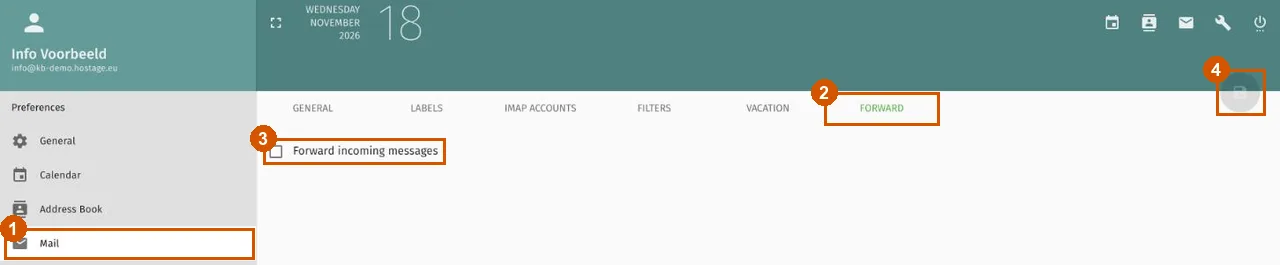
Click Mail on the left (1), then the Forward tab at the top (2).
-
Turn forwarding on
Tick Forward incoming messages (3). In the Email addresses field that appears, enter the address the mail should go to. Two options appear below it. Tick Keep a copy if the mail should also stay in this mailbox; without it, mail only goes to the other address. Always forward forwards messages before your filters are applied; if you have no filters, leave it as it is.
-
Save
Click the floppy-disk button top right (4); it turns green as soon as you've changed something. From now on new mail is forwarded.
Turning forwarding off
Open the same tab, untick Forward incoming messages and click the save button.
If it doesn't work
If nothing arrives at the other address, check its spam folder first and make sure you saved. If it still doesn't work, email support@hostage.nl with both addresses and the exact error message.
Was this article helpful?
Thank you for your feedback.
Thank you. What were you missing? Let us know at support@hostage.nl and we will add it to the article.
Related articles
- Set up an out-of-office reply in webmail Set up an automatic reply that starts and stops on the days you choose.
- Using webmail: logging in and finding your way Logging in to webmail and finding your way around folders, messages and settings.
- Change the webmail language and time zone Change the language and time zone of webmail in the preferences.
- Create mail filters in webmail Sort incoming email automatically with rules in webmail.
Still stuck?
Send us a message. We will help you, usually within one working day.