
Contents of this article
With a forwarder, mail for an address such as verkoop@voorbeeld.nl arrives at one or more other addresses, without a separate mailbox. A forwarder keeps no mail and has no password. It's handy for a general address that several colleagues read. This article shows how to create one, how to forward a copy from an existing mailbox, and how to turn a forwarder into a mailbox later. The control panel is in Dutch, so labels are given in Dutch with a translation where needed.
Creating a forwarder
-
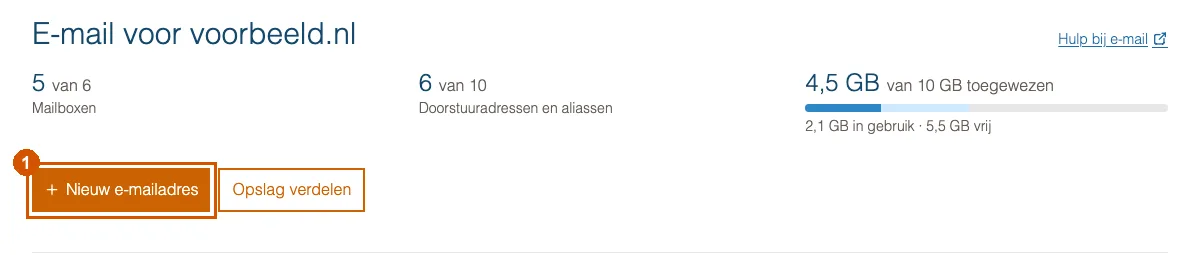
Click Nieuw e-mailadres (New email address)
Go to E-mail for your domain via Mijn diensten (My services) and click Nieuw e-mailadres (1).
-
Choose Doorstuuradres (Forwarder)
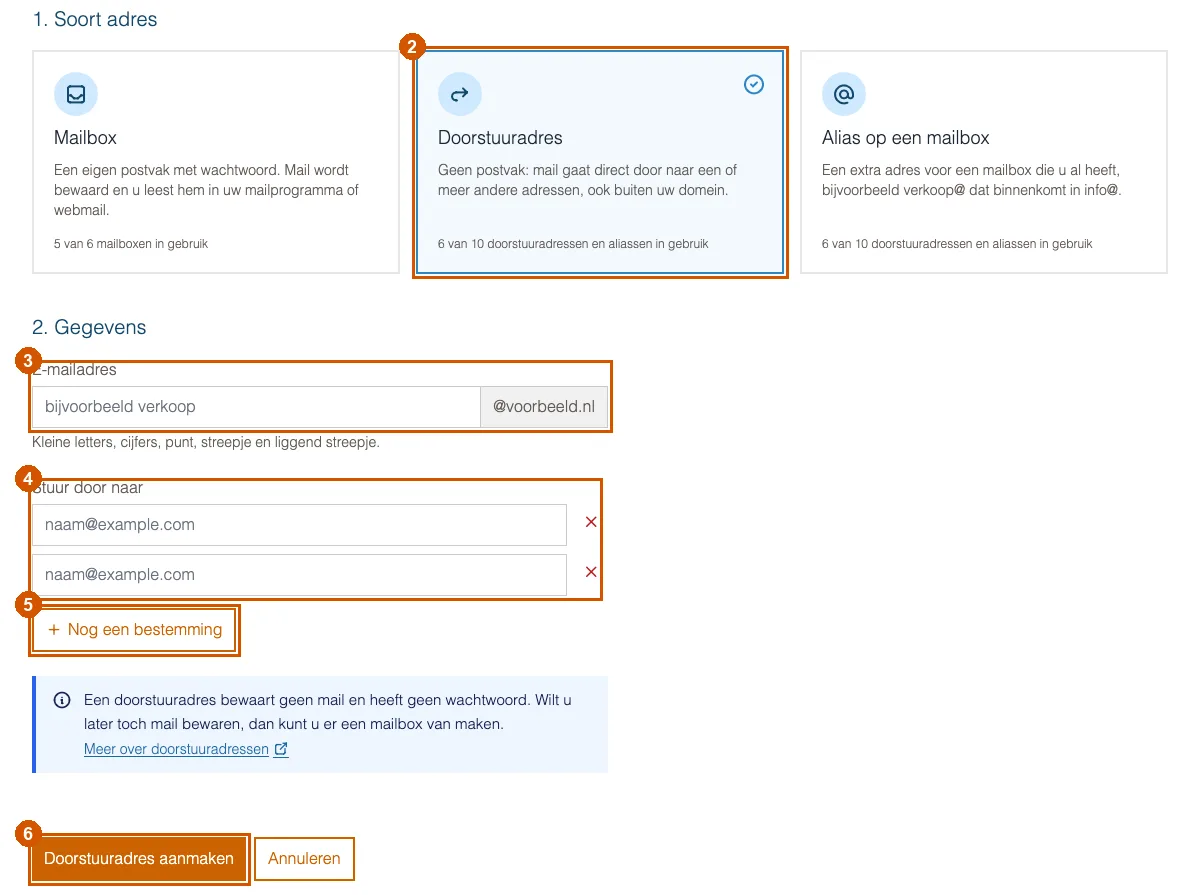
Under 1. Soort adres (type of address), choose the Doorstuuradres card (2). You then only see the fields that belong to a forwarder.
-
Fill in the address and destinations
- Under E-mailadres (email address) (3), type the part before the @, for example
verkoop. - Under Stuur door naar (forward to) (4), enter one address per field that the mail should go to. Empty fields are ignored.
- Need more fields? Click Nog een bestemming (another destination) (5). The red cross removes an address again.
- Under E-mailadres (email address) (3), type the part before the @, for example
-
Click Doorstuuradres aanmaken (Create forwarder)
Click Doorstuuradres aanmaken (6). You return to the overview and see the address under Doorstuuradressen (forwarders), with its destinations in the Stuurt door naar (forwards to) column. To change the destinations later, click Bewerken (edit) in the address's row.
Forwarder, alias or copy?
- Forwarder: no mailbox; mail goes on to one or more addresses, including addresses outside your domain.
- Alias: an extra address that arrives in one mailbox you already have. If a forwarder goes to exactly one mailbox on the same domain, the control panel treats it as an alias of that mailbox and lists it with that mailbox. See Add an alias to a mailbox.
- Forward a copy: the mail stays in the mailbox and another address gets a copy. You set that up on the mailbox itself; see below.
Forwarding a copy from an existing mailbox
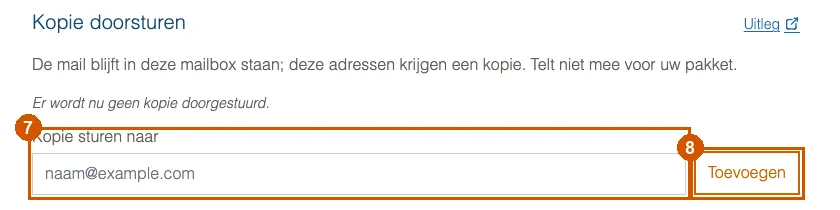
If mail for a mailbox should also arrive at another address, click Bewerken (edit) in that mailbox's row in the overview. Under Kopie doorsturen (forward a copy), enter the address in Kopie sturen naar (send copy to) (7) and click Toevoegen (add) (8). The mail stays in the mailbox; the other address gets a copy. A copy doesn't count towards your package.
From forwarder to mailbox
If you later want a forwarder to keep mail after all, click Bewerken (edit) in that address's row in the overview. Under Toch mail bewaren? (keep mail after all?), open Er een mailbox van maken (make it a mailbox), fill in Opslag (storage), enter a Wachtwoord (password) twice, and click Mailbox maken (make mailbox). The current destinations then get a copy. See also Create a mailbox.
If it doesn't work
If you can't choose the Doorstuuradres card, the reason is shown below it; usually your package's maximum number of forwarders and aliases has been reached. A forwarder can't forward to itself; the control panel refuses that. For any other error, email support@hostage.nl and include the exact message.
Was this article helpful?
Thank you for your feedback.
Thank you. What were you missing? Let us know at support@hostage.nl and we will add it to the article.
Related articles
- Set up a catch-all (and why you probably shouldn't) Have mail for non-existent addresses on your domain arrive in one mailbox, or turn that off again.
- Create a mailbox in the control panel Create a new email address with its own mailbox, storage and password.
- Change a mailbox password Set a new password for a mailbox in the control panel.
- Add an alias to a mailbox Have an extra address, such as verkoop@, arrive in a mailbox you already have.
Still stuck?
Send us a message. We will help you, usually within one working day.