
Contents of this article
If you're on holiday or unavailable for a while, an out-of-office reply automatically tells senders you'll get back to them later. You set it up in webmail and can pick a first and last day, so the reply switches on and off by itself. The reply is sent by the mail server, so it works even when webmail and your computer are off.
You need access to webmail; see Using webmail.
Turning the reply on
-
Open the preferences
In webmail, click the gear next to your name, top left.
-
Go to Mail and Vacation
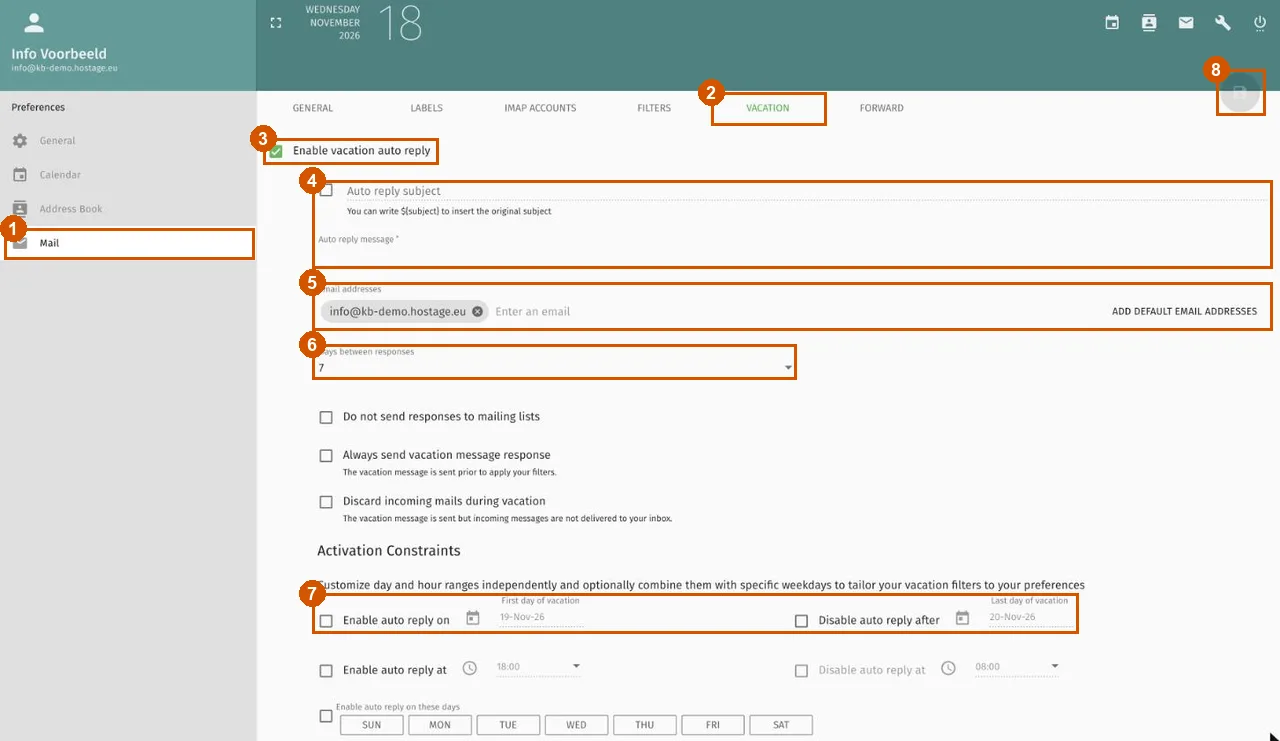
Click Mail on the left (1), then the Vacation tab at the top (2).
-
Turn the reply on
Tick Enable vacation auto reply (3). The fields for the reply appear.
-
Write the message
Under Auto reply message (4), type the text senders will receive, for example until when you're away and who covers for you. For a subject line of your own, tick Auto reply subject and fill it in.
${subject}inserts the subject of the original message. -
Check the addresses
Email addresses (5) lists the addresses the reply applies to. Usually that's already your own address.
-
Choose how often someone gets a reply
Under Days between responses (6), choose after how many days the same sender gets your reply again. That way someone who emails you often doesn't get the same answer to every message.
-
Choose the first and last day
Under Activation Constraints, tick Enable auto reply on and pick the first day you're away, and tick Disable auto reply after with the last day (7). Below that you can also limit the reply to certain times or weekdays if you want.
-
Save
Click the floppy-disk button top right (8); it turns green as soon as you've changed something. Only then is the reply active.
Turning the reply off
If you set a last day, the reply stops on its own. To turn it off earlier, open the same tab, untick Enable vacation auto reply and click the save button.
If it doesn't work
If senders don't get a reply, check that you saved and that the first day has started. Someone who already got a reply only gets a new one after the number of days you set. If it still doesn't work, email support@hostage.nl with the email address and the exact error message.
Was this article helpful?
Thank you for your feedback.
Thank you. What were you missing? Let us know at support@hostage.nl and we will add it to the article.
Related articles
- Using webmail: logging in and finding your way Logging in to webmail and finding your way around folders, messages and settings.
- Change the webmail language and time zone Change the language and time zone of webmail in the preferences.
- Forward email automatically from webmail Forward mail from a mailbox to another address automatically using webmail.
- Create mail filters in webmail Sort incoming email automatically with rules in webmail.
Still stuck?
Send us a message. We will help you, usually within one working day.