
Contents of this article
A filter handles incoming email automatically, for example by moving newsletters straight into a folder of their own. A filter consists of conditions (which messages) and actions (what happens to them). Filters run on the mail server, so they also apply to mail you read in a mail program or on your phone.
You need access to webmail; see Using webmail. If you want messages moved to a folder of their own, create that folder in webmail first.
Creating a filter
-
Open the preferences
In webmail, click the gear next to your name, top left.
-
Go to Mail and Filters
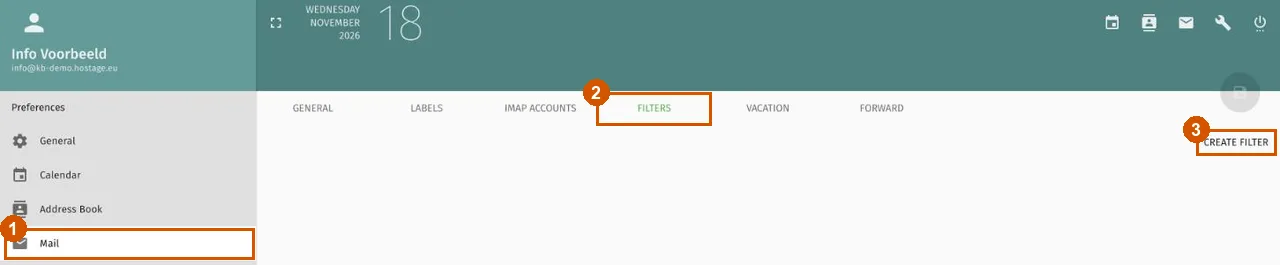
Click Mail on the left (1), then the Filters tab at the top (2), then Create filter on the right (3).
-
Name the filter
At the top of the window, type a name under Filter name (4) so you'll recognise the filter later, for example
Newsletters.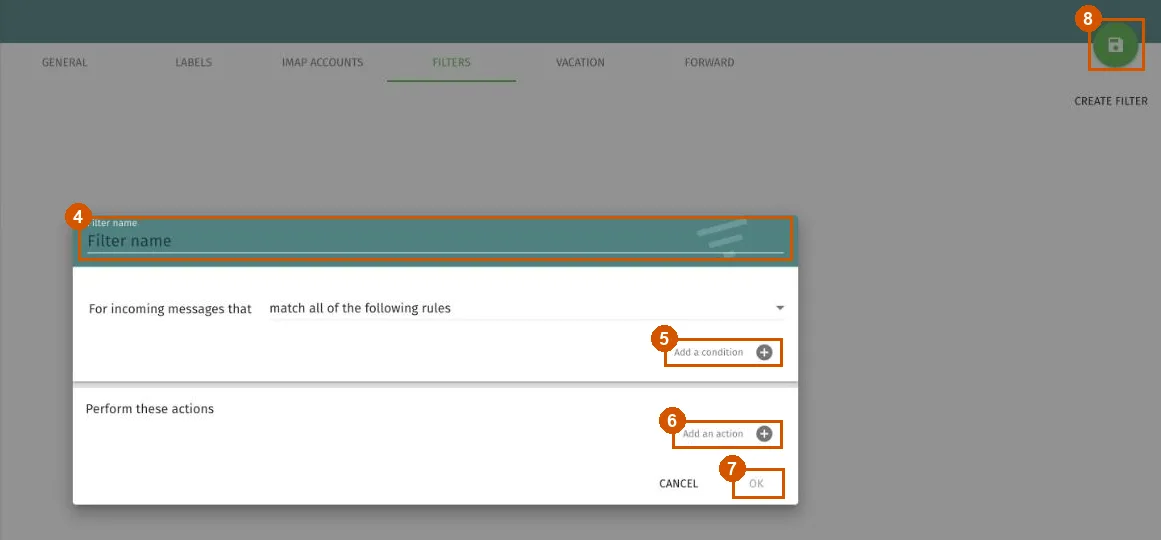
-
Set the conditions
For incoming messages that defaults to match all of the following rules: the filter then only applies to messages that meet every condition. Click Add a condition (5) and set what a message must match, for example a word in the subject or a particular sender. Add more conditions if needed.
-
Choose the action
Under Perform these actions, click Add an action (6) and choose what should happen to the message, for example moving it to a folder.
-
Confirm and save
Click OK (7). The filter is now in the list, but it only becomes active once you click the floppy-disk button top right (8); it turns green as soon as you've changed something.
Changing or deleting a filter
Your filters are listed on the same Filters tab. Click a filter to change it. Click the save button top right after every change.
Further reading
If it doesn't work
If mail doesn't end up where you expect, check that you clicked the save button after OK and that the conditions are exactly right. If it still doesn't work, email support@hostage.nl with the email address, the filter name and the exact error message.
Was this article helpful?
Thank you for your feedback.
Thank you. What were you missing? Let us know at support@hostage.nl and we will add it to the article.
Related articles
- Set up an out-of-office reply in webmail Set up an automatic reply that starts and stops on the days you choose.
- Using webmail: logging in and finding your way Logging in to webmail and finding your way around folders, messages and settings.
- Change the webmail language and time zone Change the language and time zone of webmail in the preferences.
- Forward email automatically from webmail Forward mail from a mailbox to another address automatically using webmail.
Still stuck?
Send us a message. We will help you, usually within one working day.