
Contents of this article
A mailbox is an email address where mail arrives and is kept, such as info@voorbeeld.nl. You read the mail with a password, in your mail program or in webmail. This article shows how to create one yourself in the control panel. You need an email package for your domain; you divide that package's storage between your mailboxes. The control panel is in Dutch, so labels are given in Dutch with a translation where needed.
Creating a mailbox
-
Go to E-mail for your domain
Click Mijn diensten (My services) in the menu and click the envelope icon in the E-mail column of your domain's row (1).

-
Click Nieuw e-mailadres (New email address)
At the top you see how many mailboxes and forwarders and how much storage your package includes, and how much of each is in use. Click Nieuw e-mailadres (2).
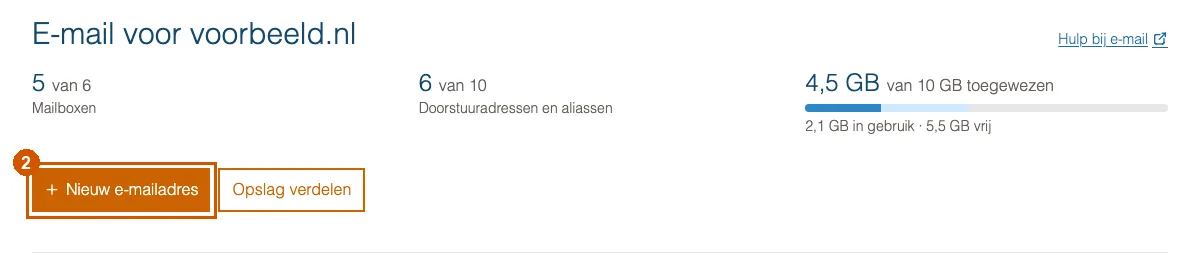
If, instead of that button, you see a message saying you don't have an email package yet, order a package first with E-mailpakket bestellen (order email package).
-
Choose Mailbox
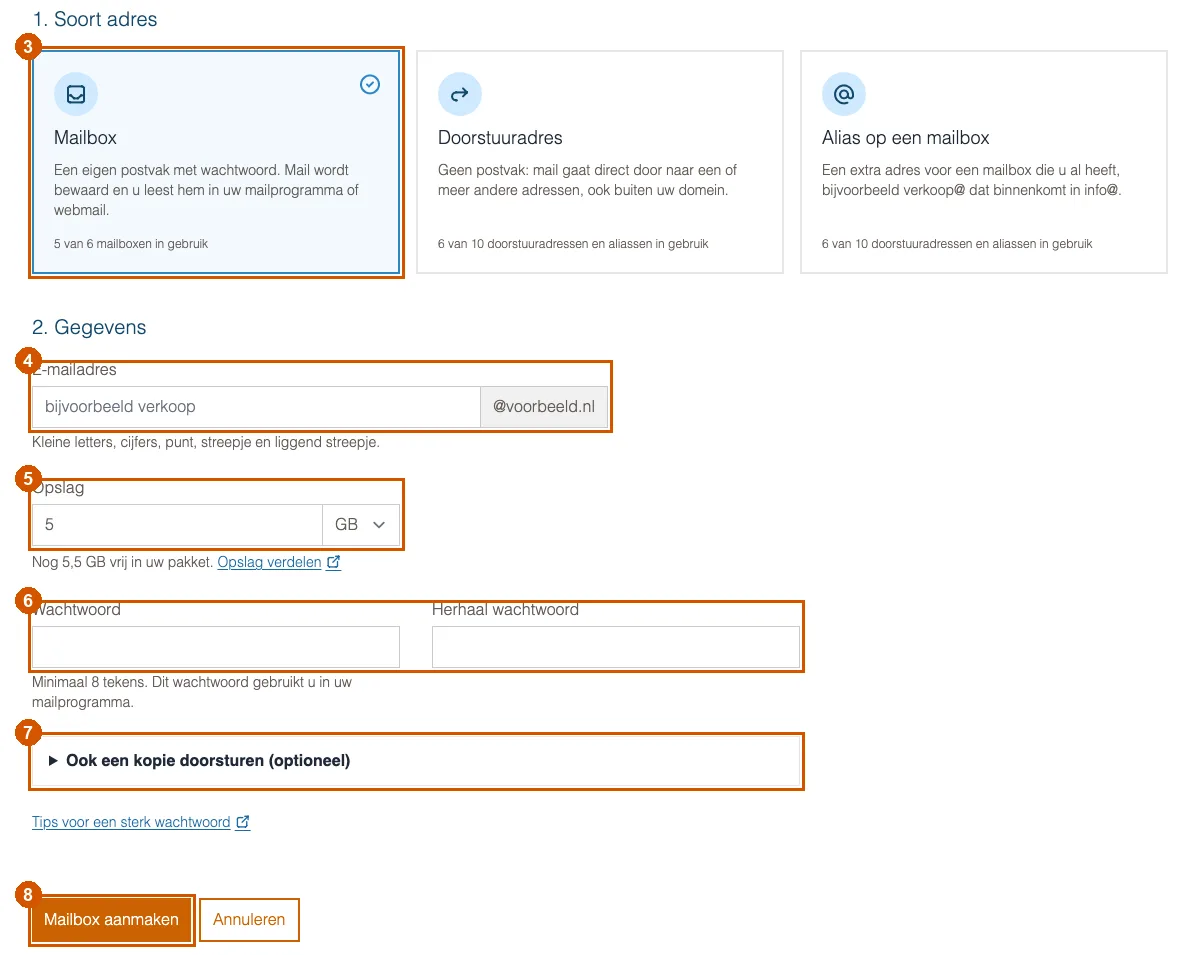
Under 1. Soort adres (type of address), choose the Mailbox card (3). You then only see the fields that belong to a mailbox. Each card shows how many you already use. If you can't choose a card, the reason is shown below it, for example that your package's maximum has been reached.
-
Fill in the details
- Under E-mailadres (email address) (4), type the part before the @, for example
support. The domain is already shown after it. Use lowercase letters, digits, a dot, a hyphen or an underscore. - Under Opslag (storage) (5), enter the size of the mailbox and choose MB or GB. The control panel pre-fills a size; below it you see how much storage is still free in your package.
- Enter the same password twice under Wachtwoord and Herhaal wachtwoord (password, repeat password) (6). It must be at least 8 characters long. You'll use this password in your mail program.
- If another address should get a copy of all mail, open Ook een kopie doorsturen (optioneel) (also forward a copy, optional) (7) and enter the address. Nog een adres (another address) adds more. The mail also stays in the mailbox.
- Under E-mailadres (email address) (4), type the part before the @, for example
-
Click Mailbox aanmaken (Create mailbox)
Click Mailbox aanmaken (8). You return to the overview with a message that the mailbox was created. The mailbox is usually ready on the mail server within a few minutes.
Deleted by mistake?
A deleted mailbox is switched off at once, but only removed for good after 48 hours. Until then it is listed in the email overview as Verwijderd — te herstellen tot (deleted, restorable until) with a date. Click Herstellen (restore): the mail, the password and the settings come back. Aliases you deleted together with the mailbox do not come back; create them again.
While the mailbox is off, senders get an error message, or the mail goes to your catch-all if you use one. The mailbox does not count towards your package in that time. If you have used its place for another mailbox in the meantime, it comes back when you restore it, but stays off until there is room again; it then switches on by itself.
If you converted a mailbox into a forwarder, you can also undo that within 48 hours with Terugzetten (convert back), as long as your package has room for the mailbox. The old password then works again. If there is no room, delete another mailbox or upgrade your package first.
Next steps
Set the mailbox up on your computer and phone with Setting up email in Outlook, on iPhone and on Android. Prefer the browser? See Open webmail from the control panel.
If it doesn't work
If the mailbox isn't created, the reason is shown above the buttons under Het adres is niet aangemaakt. (the address was not created). If the overview still shows Nog niet actief (not active yet) next to the address after a few minutes, or you can't work it out, email support@hostage.nl and include the exact message.
Was this article helpful?
Thank you for your feedback.
Thank you. What were you missing? Let us know at support@hostage.nl and we will add it to the article.
Related articles
- Set up a catch-all (and why you probably shouldn't) Have mail for non-existent addresses on your domain arrive in one mailbox, or turn that off again.
- Change a mailbox password Set a new password for a mailbox in the control panel.
- Create a forwarder in the control panel Have mail for an address forwarded automatically to one or more other addresses.
- Add an alias to a mailbox Have an extra address, such as verkoop@, arrive in a mailbox you already have.
Still stuck?
Send us a message. We will help you, usually within one working day.