
Contents of this article
All your invoices are in the control panel, including the paid ones. This article shows how to find them, how to pay an open invoice online straight away and how to download an invoice as a PDF for your records. You only need to be logged in; see Log in and set up two-step verification. The control panel is in Dutch, so labels are given in Dutch with a translation.
Viewing your invoices
-
Open Facturen (Invoices)
Click Facturen in the menu. For each invoice you see the invoice number, what it is for, the invoice date, the due date, the amount and what is still outstanding. A paid invoice has a tick in the Betaald (Paid) column; when an open invoice is past its due date, Verlopen (overdue) appears under the date.
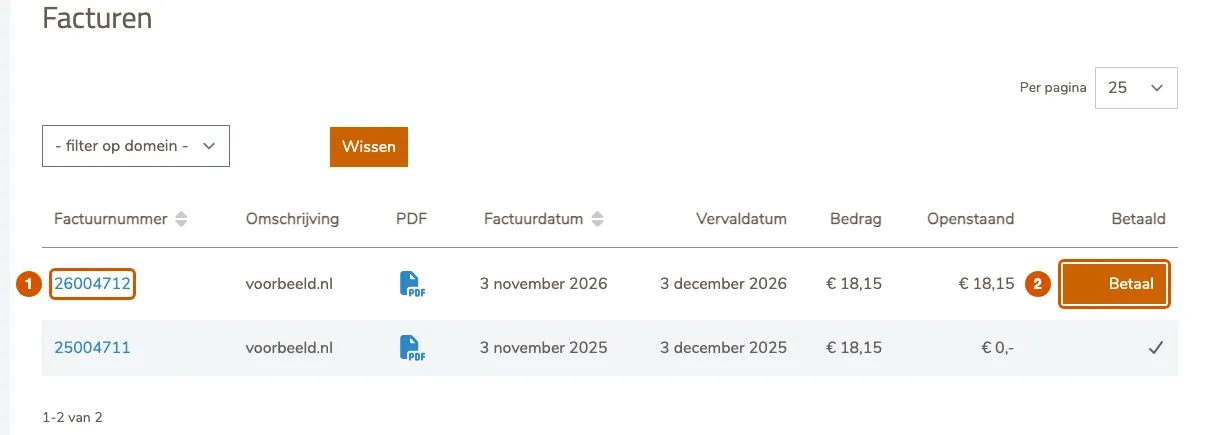
Click an invoice number (1) to open the invoice. The PDF icon in the row downloads it directly. With several domains, narrow the list with filter op domein (filter by domain).
Paying an invoice
-
Click Betaal (Pay)
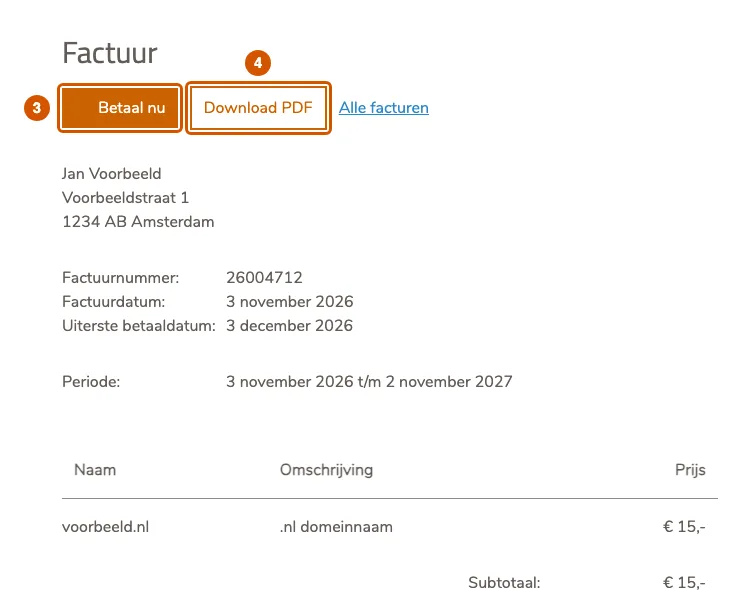
An open invoice has a Betaal button in the list (2). On the invoice itself the same button is called Betaal nu (3). Open invoices also appear on your account overview under Actie nodig (action needed), with a Bekijken en betalen (view and pay) button.
-
Complete the payment
You go to the payment page. Choose how you want to pay and complete the payment. After a successful payment you see Bedankt voor uw betaling (thank you for your payment) with the invoice number.
Downloading an invoice
Open the invoice and click Download PDF (4). The PDF is the same invoice you received by email. If you also receive your invoices as e-invoices (UBL), there is a UBL button or column for that file as well.
If it doesn't work
If the payment went through but the invoice still shows as open, wait a few minutes and reload the page: processing the payment can take a moment. If something on an invoice is wrong, or it stays open, email support@hostage.nl and include the invoice number.
Was this article helpful?
Thank you for your feedback.
Thank you. What were you missing? Let us know at support@hostage.nl and we will add it to the article.
Related articles
- Set up a catch-all (and why you probably shouldn't) Have mail for non-existent addresses on your domain arrive in one mailbox, or turn that off again.
- Create a mailbox in the control panel Create a new email address with its own mailbox, storage and password.
- Change a mailbox password Set a new password for a mailbox in the control panel.
- Create a forwarder in the control panel Have mail for an address forwarded automatically to one or more other addresses.
Still stuck?
Send us a message. We will help you, usually within one working day.