Contents of this article
The control panel is where you manage your domains, email and invoices. This article shows how to log in and how to add two-step verification: after your password, the control panel then also asks for a code from an app on your phone. You need your login details and an authenticator app such as 1Password, Google Authenticator or Authy. The control panel is in Dutch, so the button labels below are given in Dutch with a translation.
Logging in
-
Enter your details
Go to the login page. Enter your email address or username (1) and your password (2), then click Inloggen (Log in, 3). You land on your account overview.
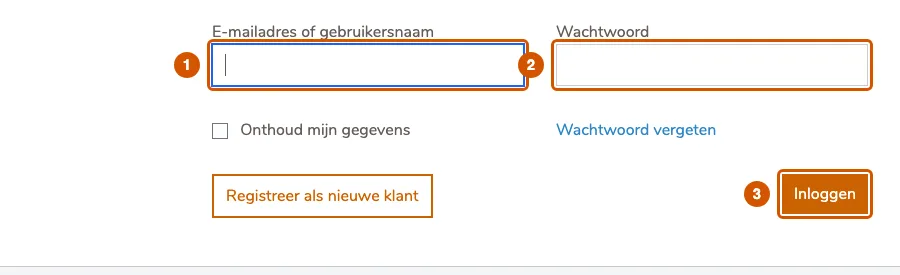
Forgot your password? Click Wachtwoord vergeten (forgot password) below the form.
Turning on two-step verification
-
Open Beveiliging (Security)
Click Account in the menu and choose Beveiliging (4).

-
Click Activeren (Activate)
Under Tweestapsverificatie it says two-step verification is off. Click Activeren (5).
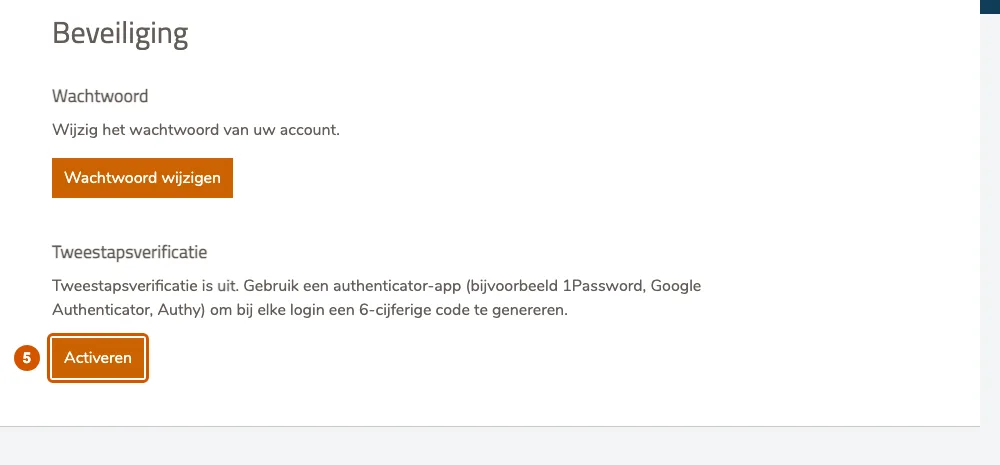
If the control panel first asks for your password (Bevestig uw identiteit, confirm your identity), enter it and click Bevestigen (Confirm). You return to the Security page; click Activeren again. Security changes ask for this again whenever your last confirmation is more than five minutes old.
-
Scan the QR code
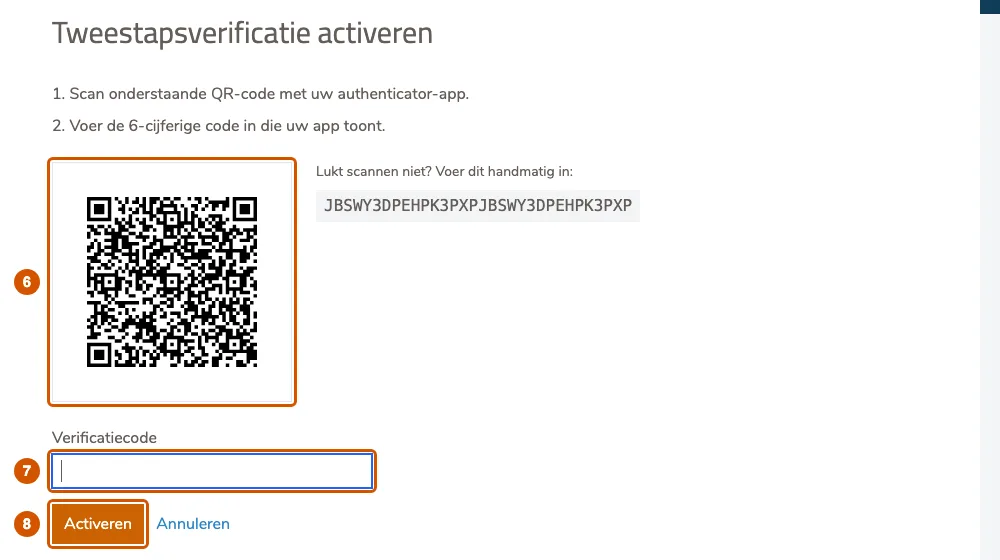
Open your authenticator app, add an account and scan the QR code (6). If scanning doesn't work, type the code shown next to the QR code into the app. Enter the 6-digit code the app now shows under Verificatiecode (7) and click Activeren (8).
-
Save your backup codes
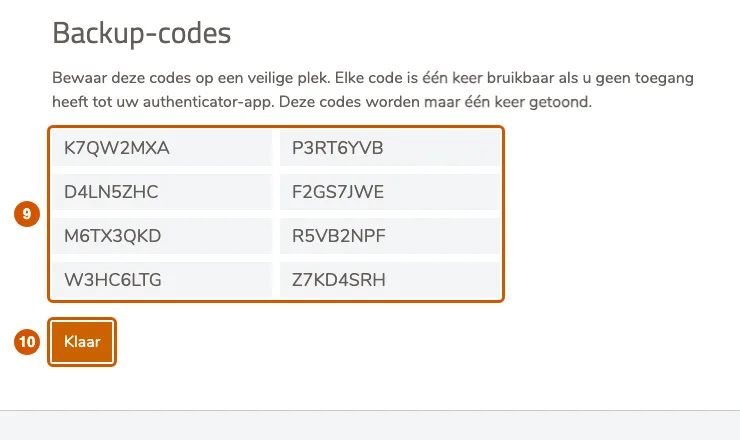
You get eight backup codes (9). Each one works once, for when you don't have your phone. They are shown only once: write them down or store them in your password manager, then click Klaar (Done, 10).
You receive an email confirming that two-step verification is on.
Logging in with two-step verification
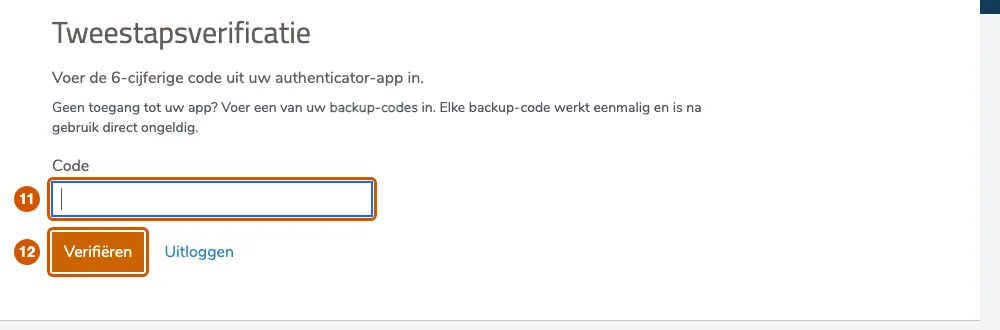
After your password, the control panel asks for a code. Enter the code from your app (11) and click Verifiëren (Verify, 12). No phone at hand? Enter one of your backup codes instead.
If it doesn't work
If your code is rejected, check that your phone sets its time automatically: the codes depend on the clock. If you can't log in because you've lost both your phone and your backup codes, email support@hostage.nl. Once you're in, see for example viewing and paying invoices.
Was this article helpful?
Thank you for your feedback.
Thank you. What were you missing? Let us know at support@hostage.nl and we will add it to the article.
Related articles
- Set up a catch-all (and why you probably shouldn't) Have mail for non-existent addresses on your domain arrive in one mailbox, or turn that off again.
- Create a mailbox in the control panel Create a new email address with its own mailbox, storage and password.
- Change a mailbox password Set a new password for a mailbox in the control panel.
- Create a forwarder in the control panel Have mail for an address forwarded automatically to one or more other addresses.
Still stuck?
Send us a message. We will help you, usually within one working day.